

A blog post or a social carousel usually fails for a simple reason. Not the writing, not the idea, but the images. They look a little soft on desktop, a watermark from a previous editor is still in the corner, or the photo that looked fine on a phone turns fuzzy once it is placed into a wide header.
You do not need a reshoot for most of that. You need a quick prep step before publishing that makes the file clean, readable, and large enough for modern screens.
Wink has become a go-to for this kind of prep because it handles the two most common problems in one place — unwanted marks and not enough resolution — without requiring layered editing.
This article covers a simple way to prepare those images before they go live. It starts with the most common problems and shows where Wink can fit into the workflow without adding extra editing steps.
How Wink Uses AI to Improve Content Images

Wink is an AI image and video editor that deals with the usual quality problems without making editing complicated. The tool scans the image, finds where clarity, detail or resolution needs work, and enhances it while keeping the main subject in focus.
It works well for the photos that are almost good enough to post. A phone photo comes out soft, an older file has lost sharpness, a small image has to be enlarged for a banner. Wink makes it possible to fix all that before the final design.
A simple workflow that fits into publishing
Most content teams don’t have time for layered editing. The fastest way to prep with Wink is to keep it to two passes in the same place.
Step 1: Clean the distractions first
Before you touch quality, remove what shouldn’t be there. That old watermark in the corner, a date stamp from an old camera, or a background object that pulls attention away from the product.
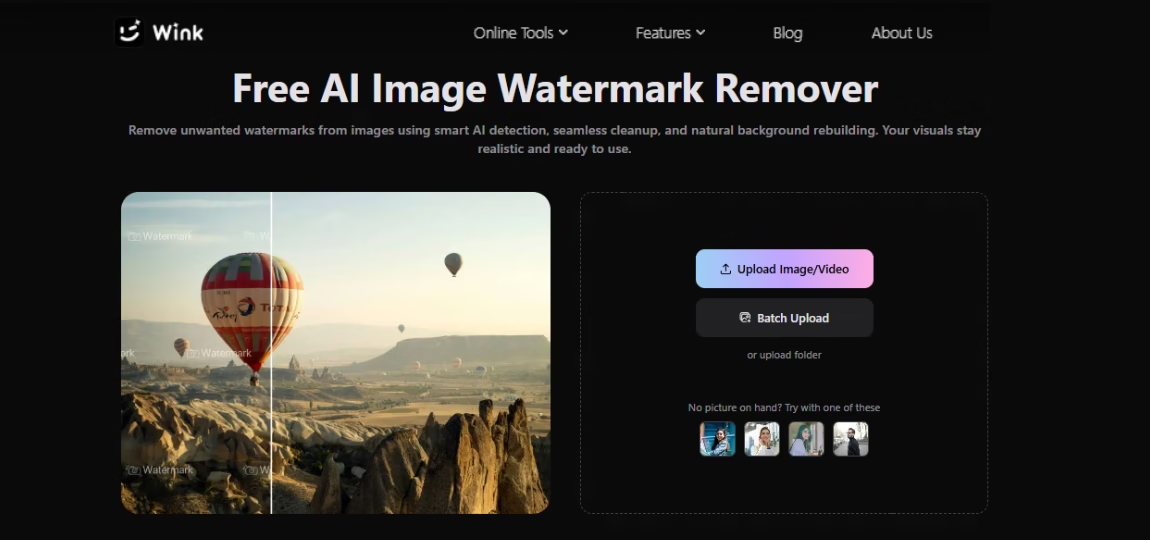
A dedicated cleanup tool does it more cleanly. Wink offers a way to delete watermark images where you can let the AI auto-detect the mark or brush over the area yourself for more control.
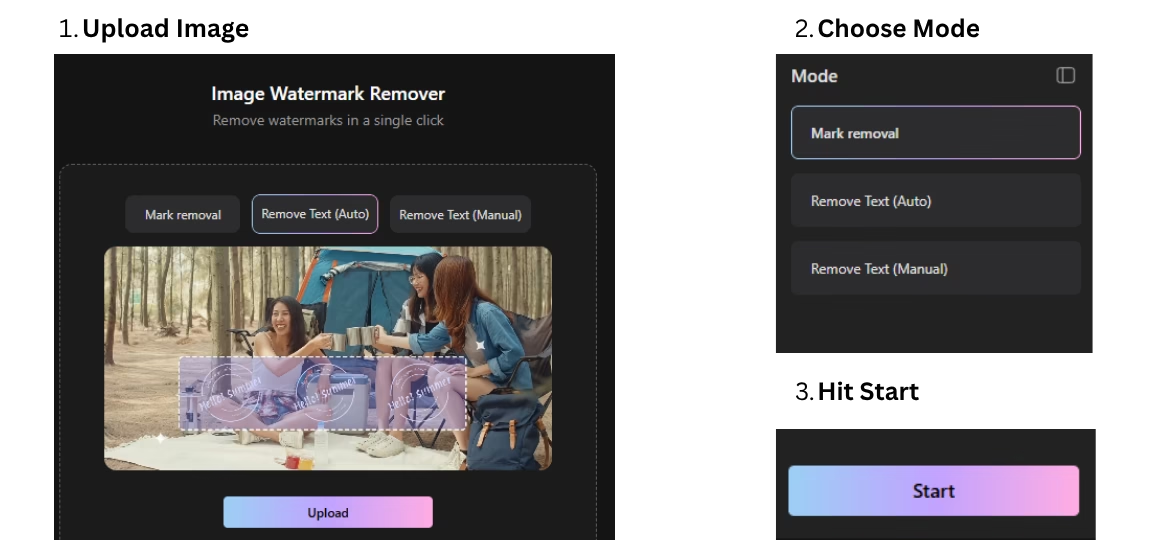
The process is simple.
- Upload Image
- Choose Mode: Pick the mode that fits your image. Use Mark removal for logos and graphic watermarks, Remove Text (Auto) for quick auto-detection of text stamps, or Remove Text (Manual) when you want to brush over the area yourself for more precision.
- Hit Start
Wink fills the area with the surrounding texture instead of leaving a blurred spot, so the result looks like the photo was shot clean. Doing this first matters — you don’t want to upscale a watermark and make it sharper.
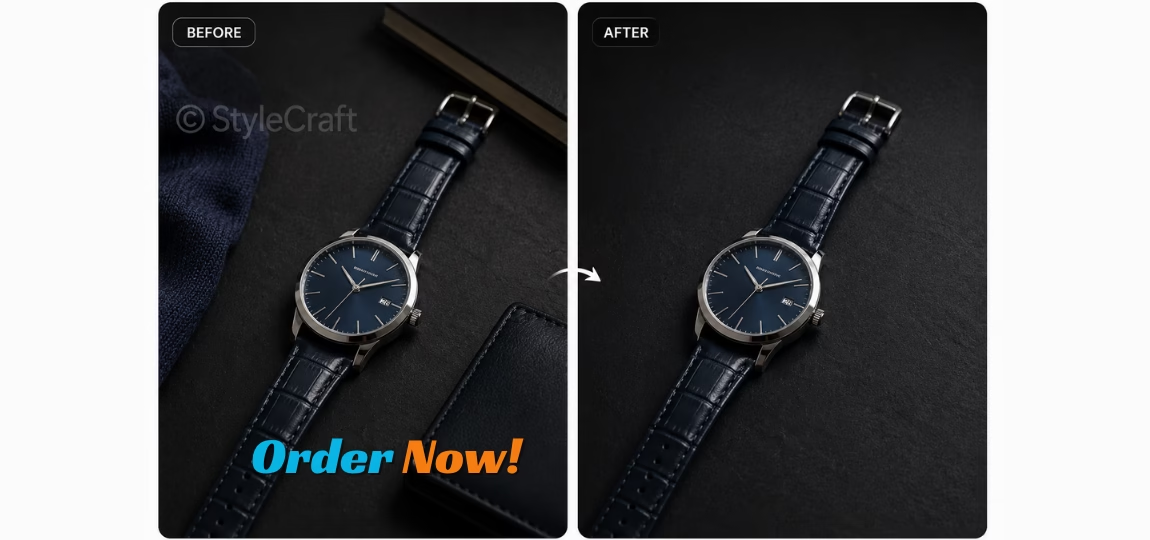
Once the area is seamless, you can move to Step 2 and upscale with a clean base file.
Step 2: Make it large and sharp enough for desktop
Once the frame is clean, fix the size. A photo that looks fine on mobile often breaks in a 1200px wide blog header or when cropped for a carousel. So, don’t just enlarge — reconstruct. The goal is to rebuild fine detail while increasing size, so you can upscale images to 4k for banners and still keep lines, text, and texture clean.
This is where Wink’s upscale feature to upscale images to 4k is useful. Instead of just making the image bigger, its AI analyzes the photo and rebuilds fine details as resolution goes up, which helps keep edges, textures and small elements from looking soft.
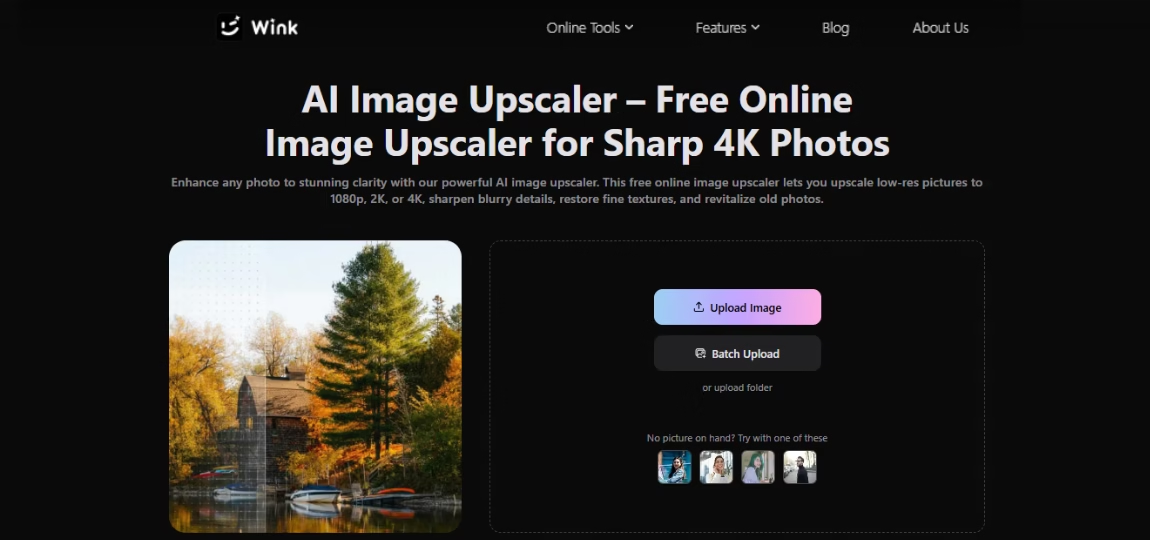
The process goes like that:
Open Image > Image Upscaler. If the file is too small, pick 2K for standard blog images and social posts and 4K for hero banners. Upload your cleaned image and click Start.
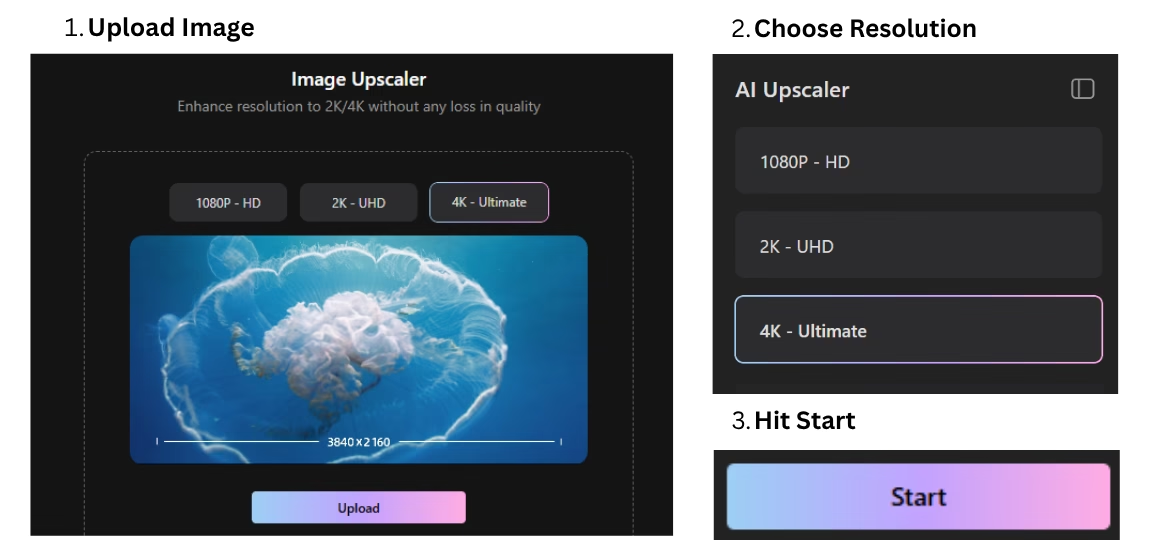
Wink will process the file and reconstruct the detail at the new size instead of stretching the original pixels. Once done, preview at 100% — check that text on labels is readable, lines are solid, and the area you cleaned in Step 1 is still seamless.
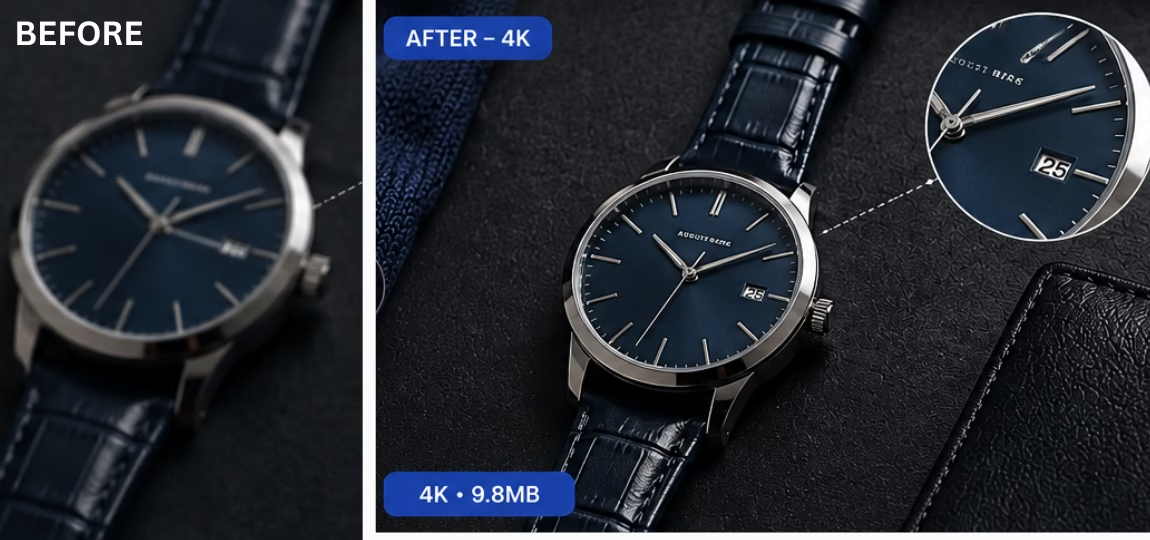
If it looks clean and sharp without that over-smoothed or artificial feel, export. You now have a single file that holds up on both mobile and desktop without needing a reshoot.
Match the Output to the Content
The right resolution depends on where the image will be used. A small image for an in-feed post does not need the same dimensions as a wide blog hero image. Upscaling everything to the largest possible size can also create unnecessary large files.
Start with the dimensions required by the layout. If the original is slightly too small, a moderate upscale may be enough. Larger increases make more sense when the image needs to fill a wide header or will be cropped heavily.
Leave some room for cropping too. What fits one layout won’t fit another platform. A higher-res source gives room to crop without stretching the image too far.
Do a 30-second final check before publishing
Before uploading images to WordPress, Shopify, or Instagram, zoom in once and go through this quick list. It catches most of what makes content look off:
- Where the mark was: Does the filled area look seamless? Make sure there’s no repeated pattern or smudge where the watermark was.
- Text and logos: Is small text on packaging, price tags or signage readable? If it jags or glows, step back one level of enhancement.
- White balance: Is the background neutral white or light gray, not yellow from ceiling lights? A clean background makes the whole post look more consistent.
- Skin and texture: Does skin keep natural variation, not a waxy mask? Does wood grain, fabric weave, or frosting keep its real texture?
If all four pass, the image is ready. If one fails, you only need to redo that single step instead of starting over.
Final thought: Clean and large enough beats heavily edited
Good editing should be hard to notice. For blogs and social posts, the photo needs to look clear and natural rather than heavily processed. A clean frame with no leftover marks and enough resolution for a 1200px header does more for trust than extra filters or sharpening.
Wink fits into that workflow because it handles the boring but critical prep—removing what shouldn’t be there and giving you enough pixels to work with—without adding extra layers. Do the two-step clean and upscale once, save the settings as your default, and you can prep a batch of 10-15 mixed-source images the same way every time you publish.
